
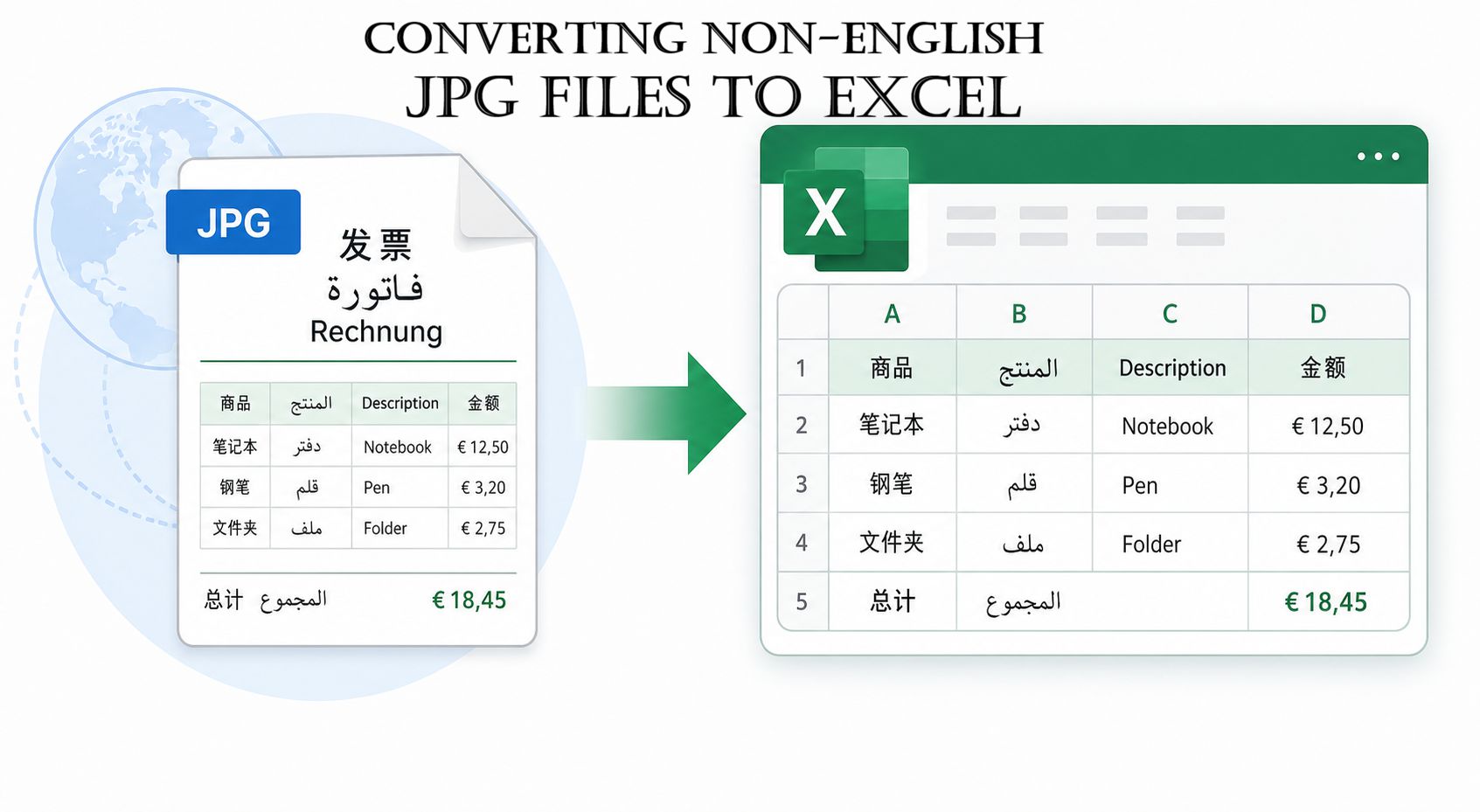
Converting Non-English JPG Files to Excel: What You Need to Know
Data does not come in one language. A supplier invoice from Germany uses a different number formatting than one from the US. A scanned report from Japan uses a different character set entirely. Arabic documents follow a right-to-left reading order.
Most JPG to Excel guides assume that every document is in English. For anyone working with international files, that leaves a lot unanswered. This article covers what happens when non-English documents are converted and what to watch for afterward.
Does language affect JPG to Excel conversion accuracy?
Yes. More than most people expect.
OCR engines are trained on character sets. An engine built for Latin characters reads English, French, Spanish, and German well. Put Arabic, Chinese, or Cyrillic in front of it, and the output comes back garbled or blank.
The problem shows up in three ways. Character recognition fails on unfamiliar scripts. Text direction gets misread—Arabic and Hebrew run right to left. OCR engines misread the direction and column order breaks. Regional number and date formats cause import errors even when characters are read correctly.
Knowing which of these applies to your document tells you what to check after conversion.
Which languages do most converters support?
Support varies a lot between tools.
Most browser-based converters handle Latin-based languages well. English, French, Spanish, Portuguese, German, Italian, and Dutch share the same core character set. Accented characters like é, ü, and ñ add some complexity, but most modern tools handle them.
Beyond Latin scripts, things get less consistent. Chinese, Japanese, and Korean need separate OCR models trained on thousands of extra characters. If a tool does not mention CJK support, it likely does not handle these scripts well.
Cyrillic languages like Russian, Ukrainian, and Bulgarian sit in the middle. Many tools support them, but not all. Arabic and Hebrew add the right-to-left problem on top of the character recognition gap.
Before uploading a non-Latin document, check the tool’s language support. A quick test on one page saves a lot of time.
What happens to special characters and accented text?
Accented characters are the most common issue with European documents.
An é may come through as e, a question mark, or a blank space. This comes down to the OCR engine and how the output file is encoded. UTF-8 encoding handles accented Latin characters correctly. Older encoding standards strip or replace them.
Currency symbols have the same problem. The euro, pound, and yen signs need correct encoding to survive conversion. A price showing €14.50 in the image may convert to 14.50 with the symbol gone.
After converting any document with accented text or special symbols, scan for question marks, boxes, or unexpected characters. These point to an encoding mismatch. Each one is quick to fix. They are easy to fix. Finding them is the harder part.
How do mixed-language documents convert?
Mixed-language documents are more common than most tools are built for.
A purchase order might have headers in French, product names in English, and supplier details in German. An invoice might use Arabic for the company name and English for the line items.
Most OCR engines apply one language model to the whole document. When two languages are present, the engine picks one and runs with it. The other language converts with lower accuracy.
The fix is straightforward. Check the sections that fall outside the main language separately. If English line items convert cleanly but French headers show errors, you know exactly where to look. Fixing a few cells is faster than rerunning the whole conversion.
For documents that mix languages throughout every section, a tool with multi-language detection works better. WPS’s JPG to Excel converter handles mixed-language documents without needing manual language selection before upload.
Managing Right-to-Left Languages (Arabic and Hebrew)
RTL documents create a layout problem beyond just reading the characters.
Standard Excel grids run left to right. Column A is on the left, and data fills across to the right. Arabic and Hebrew read the opposite way. When an OCR engine drops RTL text into a standard grid, columns end up in reverse order, and alignment looks wrong.
Excel has an RTL mode. Go to File, Options, Advanced, and then Display to switch a sheet to a right-to-left direction. That fixes the visual alignment.
Column order is a separate issue. Data that belongs in column A may land in column D. No error flag appears. Nothing flags it. Wrong column, no warning. Check column order against the original image before the data goes into any formula or report.
How do regional number formats affect converted data?
This is the most common source of errors that nobody catches until later.
In the US, 1,234.56 uses a period as the decimal. In Germany and most of Europe, the same number is 1.234,567 with a comma. Convert a European number to a US system, and it may import as text. Or the decimal drops and 1.234,560 becomes 1,234,560.
Dates have the same issue. The date 05/06/2025 means May 6 in the US and June 5 in Europe. Excel reads the date based on your system settings, not the document’s origin. A batch of European invoices converted on a US machine may have every date wrong.
Two checks fix this. Sort numeric columns and look for values out of sequence. Spot-check a few dates against the original image. Both take under two minutes.
Which tool gives the best results for non-English conversion?
The gap between tools shows up most on non-Latin scripts and mixed-language files.
For Latin-based European languages, most capable converters produce good results. Differences come down to accented character handling and encoding. Test on one page before running a full batch.
For CJK, Arabic, Hebrew, and Cyrillic, stated language support is the most important factor. A tool that does not support your language will produce poor output, no matter how clean the image is.
You can convert JPG to Excel with WPS’s online tool for multi-language documents directly in the browser. No account needed. No manual language selection required.
Test on one representative page first. Run one page through first. It tells you what the tool can and cannot handle before you commit to the full batch.
Conclusion
Non-English documents add complexity that most guides skip entirely.
Know what your document contains before converting. Check language support before uploading. Review the output for encoding errors, column order problems, and number format mismatches before the data goes anywhere.
A quick check after conversion catches errors that are much harder to find once the data is already being used.
FAQs
Does JPG to Excel conversion work for Arabic or Chinese documents?
It depends on the tool. Both languages need OCR engines trained on their specific scripts. Most free converters do not support non-Latin scripts well. Check language support before uploading.
How do I fix accented characters after converting jpg to Excel?
Garbled accented characters point to an encoding mismatch. Check whether the tool outputs UTF-8. Fix individual cells manually or use Find and Replace for repeated errors across a large file.
What happens to European number formats when I convert an image to Excel?
Numbers using a comma as the decimal separator may import as text or lose their decimal on a US-configured system. Check numeric columns after conversion and verify values against the original image.
Can a JPG to Excel converter online handle documents with two languages?
Some tools handle this better than others. Most apply one language model to the whole document, which reduces accuracy in the second language. Check both language sections after conversion and fix any errors manually.
Does the converter need to know the document language before uploading?
Most tools detect language automatically. For non-Latin scripts like Arabic, Chinese, or Cyrillic, manual language selection—where available—tends to give better results than automatic detection alone.








Add Your Directory With Us
Boost your visibility with our Business Directory

Add Your BCard With Us
Open the door to new professional connections.
DayOfDubai
Business Services
